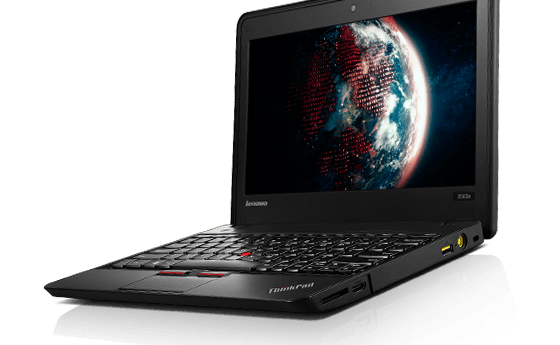
Lenovo X140e Ultrabook

On Saturday, November 26, I received a new-to-me Ultrabook.  I subscribe to e-mails from Discount Electronics and they were offering this ~ $900 PC for $144 plus S/H.  Since it was an “Ultrabook” I jumped on it.  I already own an HP’s 3105mHP 3105m Netbook.  This new machine is lighter and faster.

But there is one catch.  It is shipping with Windows 8.1.  Most of you who have suffered through the transition from Windows 7 to Windows 8 to 8.1 to Windows 10, remember the “Metro” interface and how the “workflow” so to speak of Windows 8.1 was significantly different from Windows 7.  Ouch.

I gritted my teeth and found a Youtube tutorial video on how to get around in Windows 8.1. I wasn’t impressed.  So I googled (everyone’s friend 🙂 something like “how to make windows 8.1 look like windows 7.”  Ask and you shall receive.  I found this page and downloaded the classic shell.  After installing it and clicking on a couple of choices about how I wanted my Ultrabook to look like as a Windows 7 machine I had it back.  The workflow, the menus, (I kept the new file manager though) and every other thing I was used to.

So I am happy as a clam (gorilla? chimpanzee?) Whatever.  🙂

Tlm


RISC vs. Intel cpus in the Chromebook world

One of the original main advantages of a RISC (Reduced Instruction Set Computer) was that it used less power than a CISC (Complex Instruction Set Computer).  The Intel cpu that is at the heart of most Windows and newer Mac’s is a CISC.

When the Chromebook first came out and began to sell like hot cakes some vendors were taking advantage of the RISC cpu/motherboard to sell systems with longer battery times and lower costs than the Intel/AMD-based cpus.

Intel has been designing lower power draining cpus/motherboards for laptops for years.  They apparently got busy and created something for the Chromebook line(s).  That is why you have Intel-based Chromebooks with 10+ hour battery times and lower costs than the RISC-based systems.

Tom M

Turn your older laptop or desktop into a Chromebook clone

Recently I received great news.  “CloudReady has a Chrome OS platform ready for your non-chromebook hardware”  If that link to the article on Tech Republic doesn’t work, here is the website.  You are probably interested in an individual copy of the Chromebook clone product.  It is free for individual use.

If you have an Intel PC hardware platform (usually a windows laptop) that is 8 years old or younger that you would like to run a fast, robust operating system on but it isn’t up to running say  Windows 7, Windows 8.1 or Windows 10, then this is a turnkey solution.  I have successfully installed it on 2 out of 3 laptops and a desktop I tried.  It failed on a non-standard old SSD netbook.  They have a list of tested hardware that is quite extensive on the website.

The User Interface is exactly like my ASUS Chromebook.  You will experience the Chromebook exactly except for two things.  1) If you are used to the 7 second boot time for many Chromebooks, you won’t get that.  It will boot exactly as fast as a Linux distribution would on the same hardware (around 30 seconds on mine).  2) The hardware-based security features are mostly not present.   For most people, School districts or Companies neither of the above will be deal breakers.

You will need a 8 GB Flash drive to install the Chromebook clone OS from.  The native setup only supports standalone booting and UEFI “dual booting”.  If you choose, standalone booting, all the previous information on the hard disk is deleted during the install.  With UEFI “dual booting” the previous operating system remains and is also bootable.  You will need either a fairly fast internet connection or quite abit of patience to download the operating system.

If you have a Chromebook or a Chrome browser and sign in with a Google id, CloudReady will download/clone all your extensions, applications and allow you to access your Google Drive-based data on your “new” cloned Chromebook.

Because I have an ultra-thin Chromebook I have not been motivated to move over and use this product full time.  I have one very slow (1 GHz) sub-notebook that “barely” runs Windows 10.  I may turn it into a CloudReady notebook again.  I have turned a Dell Optiplex 760 (desktop) into a Chromebook.

If you have been wanting to experiment with a Chromebook or have wanted a Chromebook but couldn’t afford a couple hundred bucks for a new/used on on E-Bay this is your path.  Educational and Commercial licenses and support are available.

If you are a school with obsolete laptops available this is an excellent, very low-cost way to repurpose them into Chromebooks.  Both Educational and Commercial licenses and support are available.

Any questions?  Post a comment.

Thanks.
Tom M

The Chromebook as a thin client

A thin client refers to a client/server system where almost all of the processing is being performed by the Server and the client simply enters the data and displays the data.  The most common example of this is the Web browser. Adobe is now offering services where they are running the high-end graphics programs on their servers and the Chromebook is running the display/keyboard/mouse pad.

Until Html5 came in and has been fully supported, while you some local processing via Javascript and Java they were still limited in what they could without plugins.  Html5 gets rid of most of the plugins (like Flash) and can still display videos and play audio files.  Html5 also supports more local processing and keeping data on the local machine.

Asus c300M

I got this one used (after a month) on e-bay for about $174.  It is basically new.  It has a 14″ screen compared to the Samsung 3’s 11″ screen.  It is running an Intel cpu and chip set.  And it has a typical run time of 10+ hours before you have to charge it up.

So this Asus c300m is probably what I will stay with.  Its funny though, Intel has gotten busy and designed cpus/motherboard chip sets with excellent low power usage.  So for the moment Intel is handily beating the ARM folks at the low power usage game.

Need some help with your Computer?

While I am pretty expert on a number of computer support issues and can offer advice easily.  Some topics require remote access to your computer and research.  If you want to contact me be my guest.

← Back

Thank you for your response. ✨

Speeding up your Personal Computer

The first question that comes to mind is “why” do you want to speed up your computer?

  1. I want to play games on it.
    1. You need to look at the minimum and recommended hardware for that game.  It may either be cheaper to buy a newer computer or it may not be possible to upgrade your current computer to play that game (for example trying to upgrade the video on most laptops).
  2.  It is slower than it used to be.
    1. There are several things you can try to speed up your computer.
      1. Un-install any programs you are not using regularly.
      2. Disable as many programs that normally “startup” while the computer is starting up.  In windows 7 try running the “system configuration” program from search box or help menu.  You can also get “Autorun for Windows” from Microsoft.com to help you with this.
      3. Run the “cleanup temporary files” under system tools.
      4. Run the hard disk defrag after iii.
    2. If the above do not speed up your computer sufficiently you have 3 other choices:
      1. Back up all your data and personal preferences and do a “clean” re-install of your operating system.  Then re-install your anti-virus, run all the service pack updates, re-install your applications/programs and then re-load your data/preferences.
      2. Increase the available memory on your system.  If your running less than 2 Gigabytes of memory on a Windows computer increasing it to 4-8 Gigabytes will make a big difference.  The reason it will make a big difference has to do with what operating systems do when they run out of memory.  They write copies of part of the memory out to the hard disk into what is called “Virtual Memory” or the Paging file.  Anytime a computer has to read or write to the Virtual Memory the whole system is slowed down on the order of 100 times.  The only time this is not true is if you are using what is called a “ram drive” or the SSD hard disks that use memory modules in place of “regular hard drive” media.
      3. Replace your computer if it is a laptop.  Or try to do a motherboard upgrade if you have a pretty standard (ATX) desktop machine.

        ← Back

        Thank you for your response. ✨


Introduction to Personal Computer Troubleshooting (continued)

I am going to talk about “general things you should do” to keep your computer healthy.

1) Always have a “firewall” running on the computer even when your inside a “firewalled” network.  The only exception to this rule is when network-based applications are failing for un-known reasons.  Then after consulting with your Techy you might try turning the workstation/server firewall off will keeping the Internet interface firewall turned on.

2) Always have an Anti-Virus program installed and up to date.  There are a lot of very good free Anti-Virus programs out there including one from Microsoft.  Use something!

3) Always have a program like the free version “Search and Destroy – Spybot” installed and available to run.  Browsers keep getting infested with assorted items that steal information and report on your internet activity.  S & D – Spybot will not only clean out those problems but for Internet Explorer and Mozilla Firefox it also offers “immunization” that protects the browser from many common exploits.  Another commonly used one is the free version of “Adware”.

As time goes on the commercial and free Anti-virus programs are providing more protection to browsers.  But as of this writing they still don’t replace S & D Spybot and/or Adware.

4) Don’t download and install software that you didn’t specifically go looking for on the Internet.  A lot of “Ads” that offer downloadable software over the Internet turn out to be variations on Spyware and also produce un-wanted “popups”.  You need to either only install reputable software you are familiar with or to find reviews of software someone is offering you to see if that are any “gotchas”.

I have relative who regularly downloads programs off the internet that “looked” interesting.  He keeps getting un-wanted popups and allegedly free programs that cost to actually be useful.  About every quarter I have to go over and clean off their PC.

5) Un-install any program you have on your PC that you are not using regularly.  This will help delay the time where your PC starts slowing down.  A large number of programs will startup “helpers” when you turn on your PC.  This ties up resources and (eventually) will slow your PC down.

6) Operating System Updates – For windows you should always have these turned on to run automagically and in the background.  I suspect the Mac/Android OS’s are updated less frequently but if an automated way to keep them updated is available it should probably be implemented.  Deciding when to update Linux is more complicated because depending on exactly which “brand” of it you are running you want to keep it completely current (maybe even beta-release) or you want to wait for the “long release”.

← Back

Thank you for your response. ✨

Introduction to Personal Computer Troubleshooting

I am assuming that you are already “computer literate” on your choosen platform (eg.Windows, Mac, Linux, Android etc).  If you are still un-comfortable with your PC, Tablet, Cellphone the first thing you will need to do is search for “how to” articles for your hardware/operating system to get yourself up to speed.  If your trouble is being caused by “operator error” then you need to fix that first.

Trouble comes (in theory) from malfunctioning hardware and malfunctioning software (eg. Viruses, badly written computer programs, etc).  The catch is there is also the interface between computer hardware and software.  These are called “drivers” and if they are malfunctioning it can be hard to track it down.

Trouble on a computer is generally related to either “running to slow” or “crashing”.  Crashing refers to an un-planned computer stoppage where it either stops working but still seems to be running or a spontaneous re-boot where you suddenly discover your computer is starting up again.  Running to slow is an “objective/subjective” issue.  It might be that the computer is not running fast enough to suit you or it might be the computer is running slower than it used to.

Both problems start their troubleshooting with “What was the last program you installed” and/or “What is the last file you downloaded/installed from the Internet?”  Modern computers (less than 3 years old) don’t usually have hardware issues unless you plug something new in.  But new software can commonly cause a problem.  So if you installed a new program or updated a program in the last couple of weeks that is the first place to look.

How do you “look”?  Go to the Frequently Asked Questions page for the last program you installed and/or updated.  Does it mention “known” problems?  Do you have any programs that are listed as “not playing together”?  Etc.  If there is no ideas there you could try un-installing the program and seeing if the problem goes away.  If it does, then most likely that last installed program was causing the problem.

A related question is “What were you doing” when you started having trouble.  1) What programs 2) How many are open 3) What files did you have open?  If you only have that one application open/running does the problem go away?  Or is it always “that program” that gives you trouble.

(To be continued)

Zen To Done

I ran across this book in Mp3 format at my public library.  It offers a light weight, low tech, easy way to improve you efficiency and effectiveness.  It even offers a “quick Zen To Done” implementation.  The tools are amazing easy to turn on and use.  A very small pocket notebook and a pen/pencil.  🙂

If you can’t find it at your local public library or through interlibrary loan you can buy a copy here:

Zen To Done: The Ultimate Simple Productivity System“>