Expensive Computer Hobbies

While I have no doubt there are many others I am going to talk about participating in BOINC.

BOINC stands for “Berkeley Open Infrastructure for Network Computing”.

Boinc allows you to donate cpu and gpu resources to research projects without committing extra time to getting up to speed on programming, networks and the subject matter you want to support.

I chiefly participate two projects.

Seti@Home
and
World Community Grid

WCG a project aggregator that usually has 5-10 Medicine, Biology and other Sciences running under it.  So far it has been CPU-only projects.  They research Cancer, Aids, Zika and more.  They have even started a weather forecast project focused on Africa.

As a longtime reader of Science Fiction (NOT Sci-Fi!) I have been contributing my bit towards finding Intelligent Extra-Terrestrial Life.  I believe that there is or was life on many planets besides “the Earth.”  Its harder to assume that there was/is “Intelligent” Life.

Since I have been processing for years I have bought/retired/sold a number of computer systems.  This summer I had enough of them running that my “average” level pay electric bill exploded from $250/mo to over $500/mo.

I went back to work first part-time and then full-time to pay for my electric bill and my car payment.  Someone hit my parked car and totaled it.  Its amazing how much trouble it is to get around without a Car even in a college town with pretty good bus service.

After considering things I started liquidating the majority of my computer hardware investment planning to sticking with one late model Amd cpu (Amd 3900x) and 6 video-cards (since it is possible to crunch a lot faster on Gpus with their parallel processing facilities.

The power bill is going down.  It might even be within my budget before the project I am working on expires.

Most BOINC projects have active websites where you can meet and discuss the project or other “off topic” subjects.

Here is my main box that crunches for BOINC.  Here is the Leader Board where I am currently running in the top 15 in the world for Seti@Home.

Tom M


My Guitar is Lonely

My 12 string guitar has spent the last 2 odd years in its case.  I couldn’t bring myself to get it out.  I was an intermettent player before my Wife passed.

So yesterday I got it out.  The first thing I noticed is my battery powered tuner widget wasn’t working.  The good news is it was a battery issue.

I am probably going to “Armor All” my dusty Guitar case this evening because it really is that dusty.

Then I will resurrect my Peter, Paul and Mary and other assorted tunes.

Tom


Is your Windows 10 PC lagging/stuttering Part 2?

In part 1 I addressed some of the most important things you can do by changing your software settings and running utilities to cleanup and defragment your Hard Disk Drive. In this post I will list several common hardware upgrades you could do to reduce your Windows 10 system’s lagging and/or stuttering.

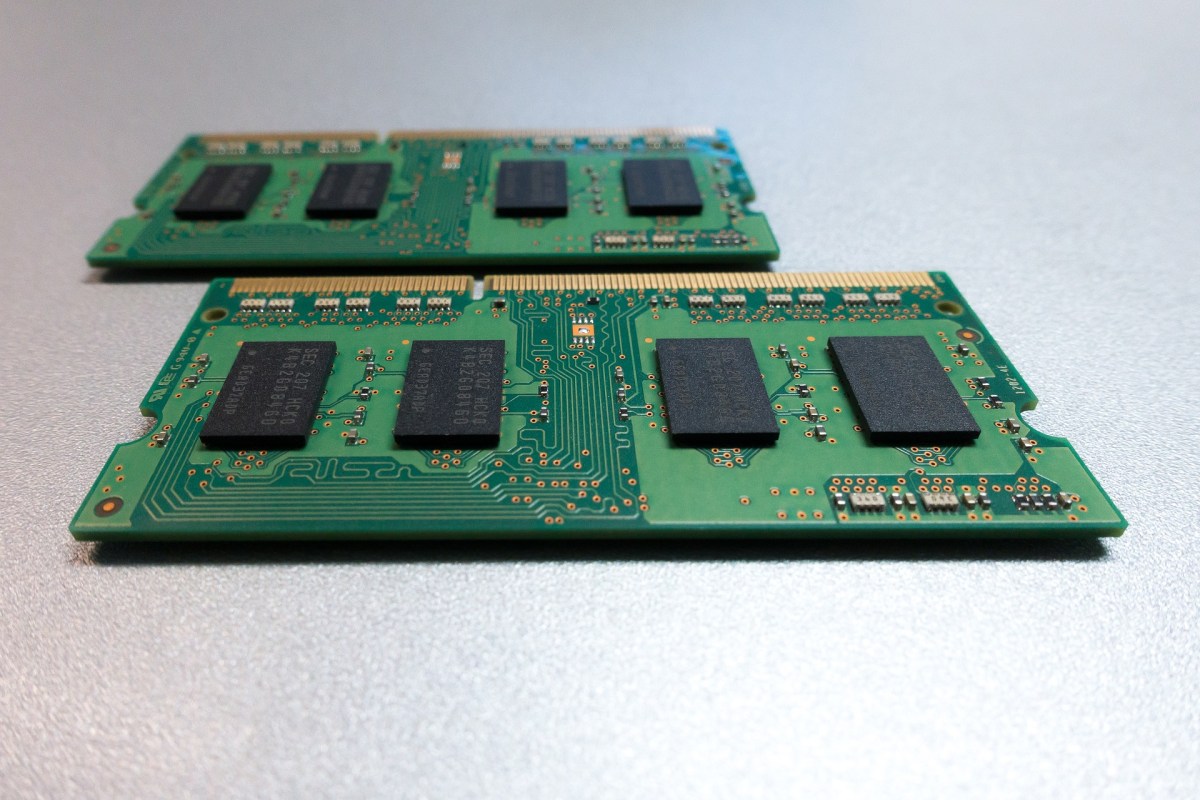
  • Increase the available ram/memory.  While Windows 10 will run in 4 GB’s of ram.  Your system will use “Virtual Memory” aka: Paging File much less often if you are running 8 GB of memory or possibly higher.  This is the single BEST way you can speed up your computer.
  • Upgrade your HDD to either simply a faster HDD (7200 rpm) or preferably a Solid State Device.  A SSD is similar to a Flash drive but much faster, much larger and more reliable under typical HDD conditions.
  • If you are running a Desktop machine you may be running an “integrated” video card on the motherboard or in the cpu.  You can upgrade your video card for anywhere from a modest $40-$60 to $500 and gain massive improvements in your video display speeds.  I don’t recommend spending much more than the $40-$60 range on a video card upgrade without doing a lot of research and/or asking advice from trusted sources.

TlG

Getting more production out of your Hours of production

I have reviewed a book called Zen To Done.  I have been exploring increasing personal and corporate productivity.  I have studied Lean/Six Sigma.  The WordPress powered Blogosphere is a wonderful place to browse, explore or search in.  So I ran across this blog post on productivity.

As in ALL situations where you are trying to increase productivity, you are absolutely not trying to cause someone to put “more effort” into their work.  You are trying to get either the same production with less effort or get more productive with the same effort.  The key is the “Work Smarter, Not Harder” idea.

Lean and Six Sigma both have their roots in manufacturing.  There have been enormous successes in manufacturing (see “The Toyota Way” for instance).  There have been numerous attempts and perhaps successes in applying Lean/Six Sigma to the service industry and to Knowledge work.  Its not easy to do.  A major stumbling block is being able to measure your productivity.  If you can’t measure it, how can you be sure your changes actually improved your productivity?

Douglas W. Hubbard wrote a book called “How to Measure Anything – Finding the Value of “Intangibles” in Business.”  He has setup a training and certification program to help business people and consultants get a handle on this.  Jay Arthur is a consultant in Lean/Six Sigma and has written about using LSS in service industries like hospitals.  So it is possible to apply these techniques.

My favorite (lean) story about how to increase productivity in an office process is a “follow the object of the workflow through the process from the object’s point of view”.  When you do this you will find that the object spends significant time waiting between activities.  If you can locate those wait times and if you can reduce the wait times you can speed up the production of that service without actually making anyone work harder.

“Lean” probably won’t help a pure Knowledge Worker situation but it will help a multi-step service business.

I just noticed that using this WordPress application for posting drops out the spellcheck I am used to having.  I need to investigate if I can get this back in, or return to the web interface where I have Grammarly available to grammar/spell check. Hmmm…..

TlG


Mouse scrolling the opposite of what you are used to?

After I upgraded my “new” Lenovo X140e to Windows 10 from Windows 8.1+”classic shell”(to give it the look and feel of Windows 7) I discovered the scrolling on the mouse pad was “backward” to what I was used to.

For instance, when I use two fingers to go “down” the mouse pad I expect the screen to roll down the page.  It wasn’t, it was moving the screen in the same direction I dragged my fingers.  So if I drag my fingers down, the screen rolls “up” the page.  While this sounds counter-intuitive according to my Chromebook (Aus C-300) this is called “Australian” scrolling.  In the Windows 10 Mouse settings menu, they call it “reverse scrolling.”  Somehow my “default” got set for reverse scrolling.

What if you want your Windows 10 machine to return to “regular” scrolling?  There is a fix.  I searched the internet… and it appears that if you dig far enough down into the mouse settings you can change the 2 finger behavior to “normal”.

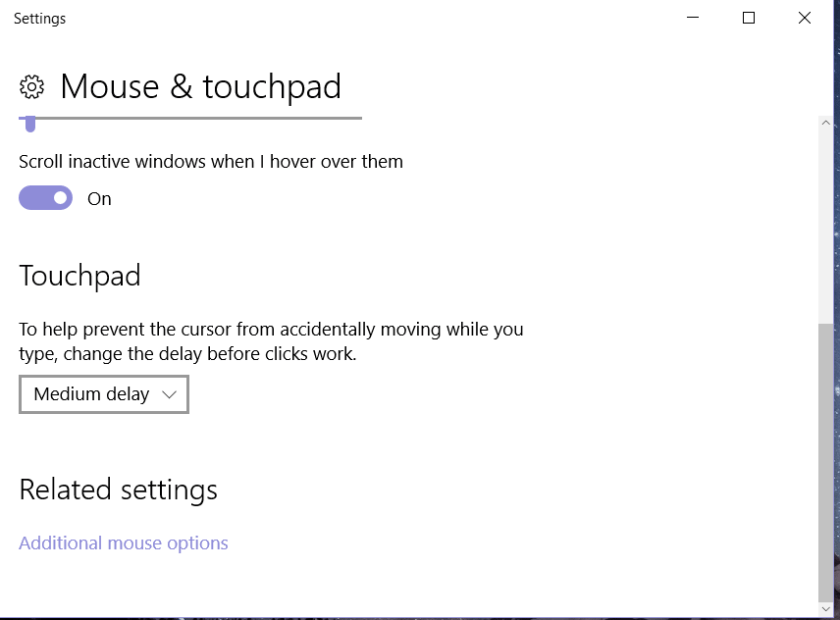
First, you use the Cortana search box to find “mouse settings” and it offers you “Mouse and touchpad.”

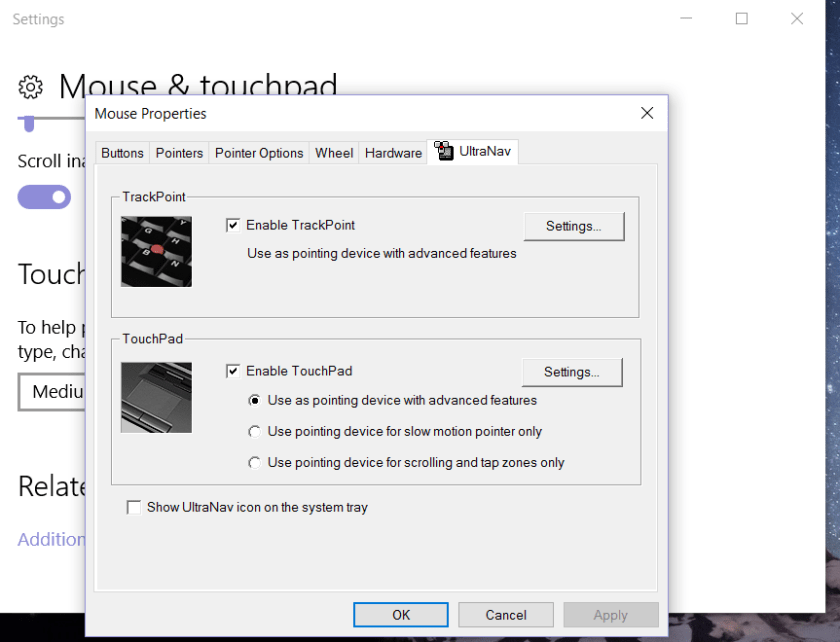
Second, you click on the “additional mouse options.”

mouse-settings-2

Third, you click on the “enable touchpad” settings button.

mouse-settings-3

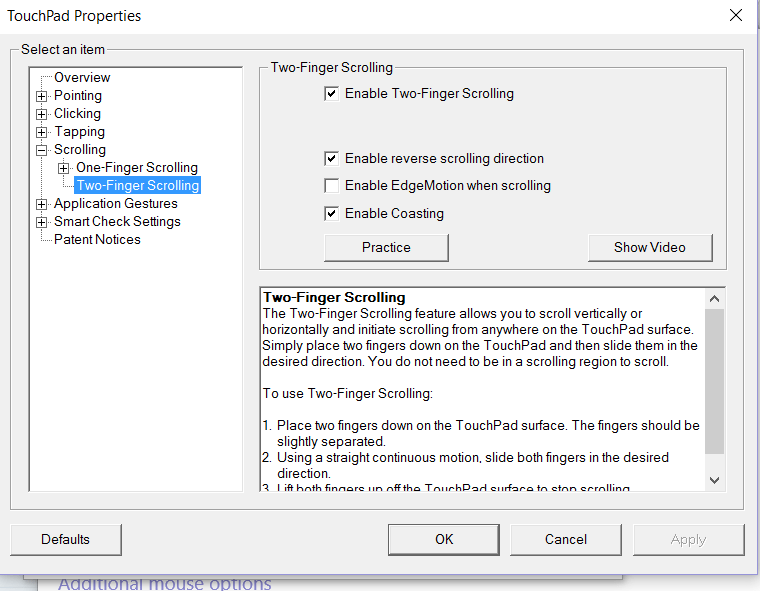
Fourth, you click on the scrolling listing on the “tree.”

mouse-settings-4

Fifth, you select the “two finger scrolling”.

mouse-settings-5

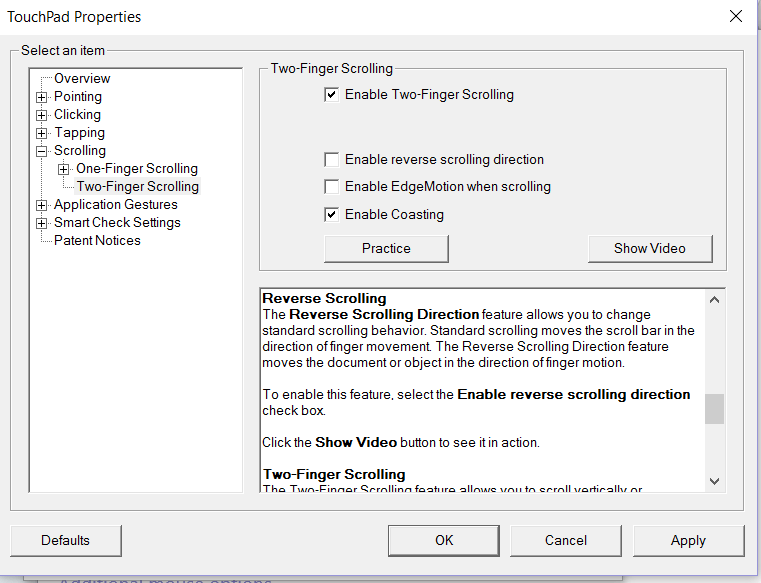
Sixth, you make sure the “reverse scrolling” box is un-checked.

Then start clicking, “apply” and “ok” until all the menus are closed. You should then discover that Windows 10 now scrolls like previous versions. eg. If you move you two fingers down the mouse pad, the screen scrolls down, just like it does when you use a mouse.

Review of a Netgear N900

The actual label is “Netgear N900 Wireless Dual Band Gigabit Router.”  I got mine from Discount Electronics for $15 which is why I jumped on it like a hungry mouser (cat).  I needed a better wifi router for my son so I ordered 2.

What’s not to like?  This  router has both the 2.4 GHz and 5 GHz bands with all those b/g/n and a/c stuff.  The 5 GHz band is good for shorter ranged high volume data connections.  This router was reviewed by other sources I trust to have rock solid connections out to 300 feet.  It produces a 10-15% stronger signal (according to the Wifi scanner app on my cell phone) at the same location (my master bedroom) than my Belkin Wireless G router does.  This is the same bedroom my Arris TG862g won’t even reach.

So far I have only been using it as an Acess Point off my Arris TG862g.  I am waiting on a cable modem with telephone jack(s) to arrive.  When that does, I will experiment with moving my local land line onto the internet while using the Netgear N900 to take care of all my internet connectivity needs.  I will also probably sell the Arris and the Linksys cable modem.  I will post about this once I have something more to report.

If you decide to set up your Netgear N900 as an Access Point I will make one recommendation.  The menu you use to activate the AP suggests NOT using a fixed IP address.  I tried that.  The AP worked but I couldn’t access it anymore because I couldn’t tell what it’s IP address was.  You normally access an AP by putting in its IP address (say 192.168.1.230) in your browser.  If you decide to use a fixed IP address you should make sure your DHCP server range excludes that address.  If there is no way to specifically exclude an address simply lower the address range that the DCHP will serve and make the fixed address an IP number higher than that.

Since I have about 7 computers, a cell phone, an Android tablet and a Chromebook laying around here it’s not like I don’t have connectivity needs.  3 of these computers are always on, running BIONIC applications, so I really need a 24/7 level of support.

I have offered above in the “reviewed/sources” links for all the details about how good this Netgear N900 is so I won’t recapitulate those details here.  Thanks for reading.

Tlm

Review of an Arris TG862g

The Arris TG862g is a Residential Gateway providing an “all in one” approach to providing internet access and telephone service through your cable TV coax.  It has the cable modem, the router (with NAT and a Firewall), 4 RJ-45 ports and WiFi connectivity at the N level (2.4 GHz, b/g/n).

The Pro’s include all the features I listed above.  The Gui interface is not too complicated for anyone who has setup a couple of routers over the years.  And is approachable by anyone who is willing to follow the installation guide(s) available on the internet.  I like James Causian’s review of this modem and related topics.

So far this looks like a pretty good deal.  If you can find a used version that works you can get it for near $50 plus the cost (probably) of replacing the battery backup with another battery.

The Cons are large enough to be off-putting and irritating.  They are not large enough to say this is a completely unsuitable buy.

  1. First, Remember, Correlation is not causation.  Right after I installed the Arris TG862g, every couple of days, something happens that causes the chrome web browser of whatever system I am using to crash and restart.  I have talked to my local cable companies tech support about this issue since this is the same gateway they rent and/or sell to other customers.  No fix in sight.  I would like to note that this happens even with 2 different Access Points installed.  So whatever the issue is, is it part of the Arris rather than a Wifi related issue?  I contacted Arris technical support who pointed out there was “no way” a router could crash a web browser.  And after looking around I found some other errors that produced the same symptoms.  So it looks like this issue may not be the Arris gateway’s fault.  On the other hand, I wonder if information transmitted by a router could cause this kind of issue?  If so, has the firewall failed or maybe some other hardware?
  2. The Wifi signal is significantly less strong than my Belkin Wireless G router.  I have a Wifi scanner app on my android cell phone.  I setup two different Wifi connections that were well labeled so I could tell the difference.  The Arris Wifi signal was unusable at the other end of my house (master bedroom) while the Belkin Wireless G was still going strong.  Since this was a common complaint on the internet about this Arris model I have no reason to believe that I had a sub-par unit.
    • Don’t get me wrong.  It should be fine for a 1 room apartment where the Arris is either in the bedroom or the living room.
  3. You can get around #2’s problem (wifi has no range) by either getting another setup (eg other modem and router), turning off the Wifi component (it’s a single checkbox, then click the update button) and adding an external Access Point, or you can “bridge” the gateway and install an entirely new router/wifi.
    • I have experimented with 2 different Access Points both of which have addressed issue #2 (wifi has no range).
    • I have bridged other routers and used an external router/wifi.  I just bridged this residential gateway and changed my Netgear N900 from an Access Point back to a full-service router modem.    Internet research and my local Cable vendor have both confirmed that you can still have telephone service while the modem is bridged.
    • I also have on order a cable modem with telephone jacks that I will try out next.

So in conclusion, this is not the residential gateway I am likely to get and/or keep.  Why?  Because I managed to luck into a Netgear N900 router/wifi for $15 from Discount Electronics.  It listed near $200 retail about 3 years ago.  I will either use the N900 with a bridged Arris TG862g or a Linksys CM3008 that I have previously mentioned or with a not yet arrived Arris cable modem with telephone jacks.  I will review the Netgear N900 later.

Tlm


Not renting a cable modem every month is cheaper

I was already aware when I opted to switch my internet from AT&T to cable that I would need to buy my own cable modem.  So far I am the “proud” owner of a Linksys CM3008 and an Arris TG862g. The Arris is a “telephone ready” residential gateway and the Linksys is a plain bread and butter cable modem with no router or wifi or anything.

Since I own an old basic router with wifi (Belkin Wireless G) that has worked as both a router and as an Access Point I was able to immediately get things setup.  It worked fine.  If my basic goal was simply to replace my internet with a cheaper choice that served my needs this would do it.  But wait!  There’s more (as I said in another post).

I wanted to see if I could lower my landline cost too.  I need to note that my wife is comfortable only with a landline.  She is afraid she would lose a cell phone.  One possibility to is to move to a VOIP solution.  It needs to integrate with the house phone system so that it transparently works just like AT&T.

Enter, the “telephone ready” cable modem or residential gateway.  The distinction appears to be exactly that .  A “telephone ready” cable modem still will need a router to provide internet service to multiple internet devices.  It can be plugged directly into a phone jack and will provide phone service to the rest of the house.  I have one of these on order because of the results I got from using an Arris TG862g.

I am going to review how good or bad the Arris TG862g is in another post. I would not be exploring yet more products if it had been very good.

Tlm


Internet and phone service on the cheap

A couple of months ago I noticed that AT&T was charging me close to ~$100/month (USD) for a voice line and ADSL that had less than 1 MB/sec upload speed.  I wondered if I could reduce my costs?

First I investigated simply moving to a cheaper ADSL plan.  The best AT&T could do would reduce my cost about $12/mo while dropping the internet to their slowest speed.  And I still wouldn’t have 1 MB/sec upload speed.  In fact, AT&T doesn’t offer a 1 MB/sec upload speed.  This could be an issue if I wanted to apply for a “work from home” customer service or technical support job.  All of them require at least a 1 MB/sec upload speed.

Fortunately, the local cable network company offers service in my area.  They were also offering a sale on a 10 MB down, 1 MB up plan.  $15/mo.  Later I learned that this plan is usually $30/mo.  So in a year I expect the price to rise.

So after paying an installation fee and buying a couple of cable modems I now have perfectly good internet for less.  I will note, I am not a big video or movie download person so this basic internet is fine for me.

To recap.  1) I am now paying about $16/mo for the internet.  2) My phone bill went from nearly $100 down to about $55 this month.  But wait!  There’s more.  🙂  That will have to wait for the next article.

Tlm